Self-Destructing Chats
Self-Destructing Chats give your team a private space to ask questions without those conversations being stored in their permanent chat history. It’s an admin-controlled feature — off by default — that organizations can enable to give employees a more personal, low-visibility way to use AI at work.
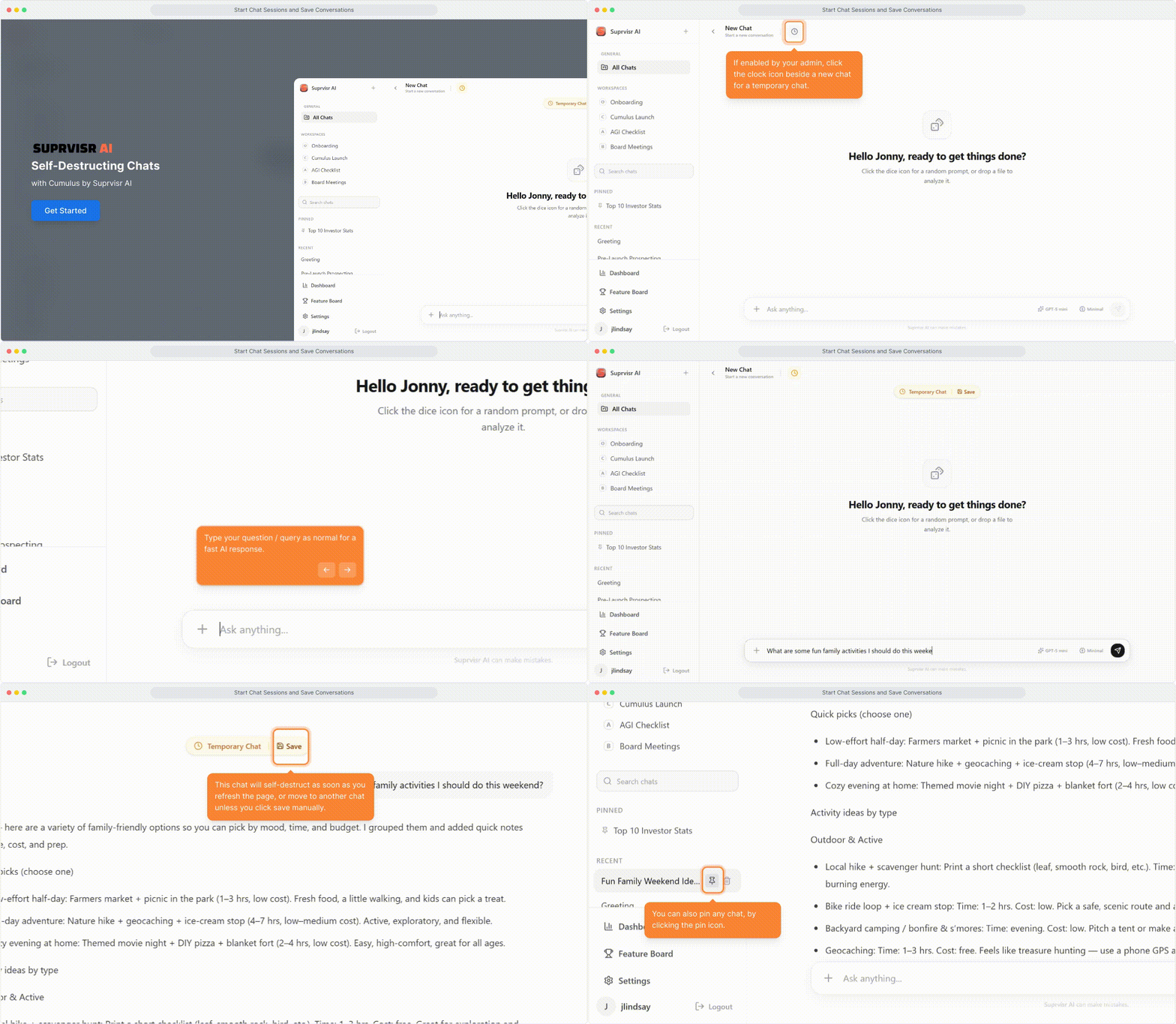
How it works
When a user starts a self-destructing chat:
- They click the Timer icon beside the new chat button
- The chat opens in a private mode — indicated visually
- The conversation happens normally with the AI
- When the session ends, the chat is not added to their history
- If they want to keep it, they can click Save before closing
Self-destructing chats are not used to train or improve Suprvisr AI’s models. Some basic safety visibility is retained by the platform, but content is not stored for your team’s access.
Who can enable this feature?
Self-Destructing Chats are off by default for all organizations. Administrators can enable it:
Go to Settings → Organization
Click the Settings (gear icon) → select the Organization tab.
Find Self-Destructing Chats
Under the Admin Controls section, locate the Self-Destructing Chats toggle.
Enable for your org
Turn it on. Team members will now see the Timer icon next to the new chat button.
This feature is valuable for organizations where employees might hesitate to ask sensitive or personal questions at work. Giving them a private mode can increase genuine AI adoption.
What gets saved vs. what doesn’t
| Item | Self-destructing chat | Regular chat |
|---|---|---|
| Conversation content | Not saved (unless user saves) | Saved to history |
| Visible to admin | No (basic safety only) | Usage patterns visible |
| Used for AI training | No | No |
| Appears in Dashboard | No | Yes |
| User can save manually | Yes | Always saved |
For users: starting a private chat
Look for the Timer icon
It appears beside the + New Chat button in the top-left sidebar (only if your admin has enabled this feature).
Click the Timer icon
A new chat opens in private mode.
Chat normally
Ask what you need. The AI responds exactly as it would in a regular chat.
End the session
Close or navigate away — the chat will not appear in your history.
Save if needed
If you want to keep the conversation, click Save before closing.
Related
- Dashboards — usage visibility for users and admins
- Admin Setup — organization controls and permissions