Conversations
Every chat you have with Cumulus is saved automatically. Your sidebar keeps a running list of conversations so you can pick up where you left off.
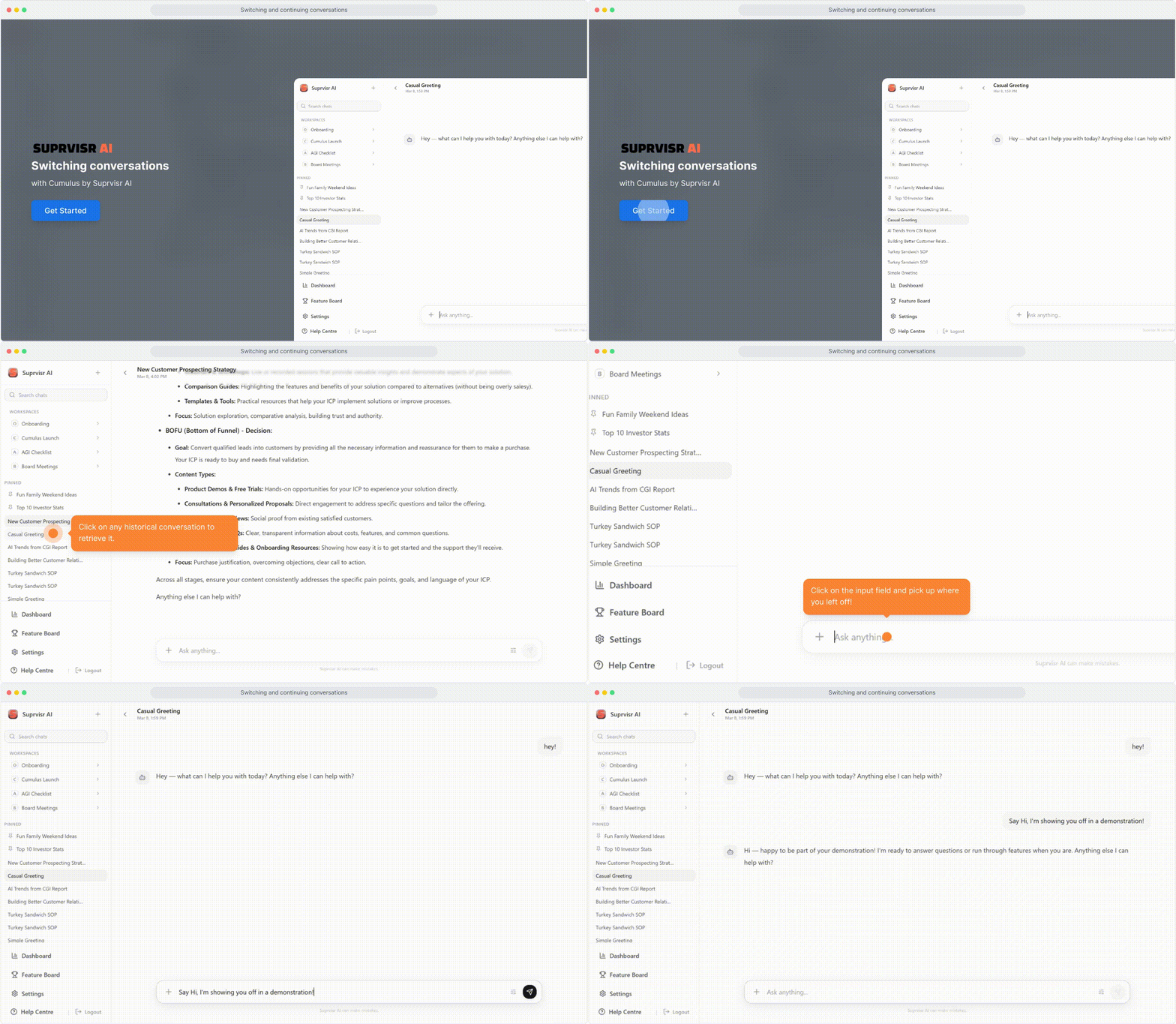
Starting a new chat
Click the + icon in the top-left of the sidebar to start a fresh conversation. New chats begin with an empty canvas — your role-based greeting and example prompts appear automatically.
Start a new chat when switching topics. Conversations carry context from previous messages, so mixing topics can lead to less focused answers.
Pinning conversations
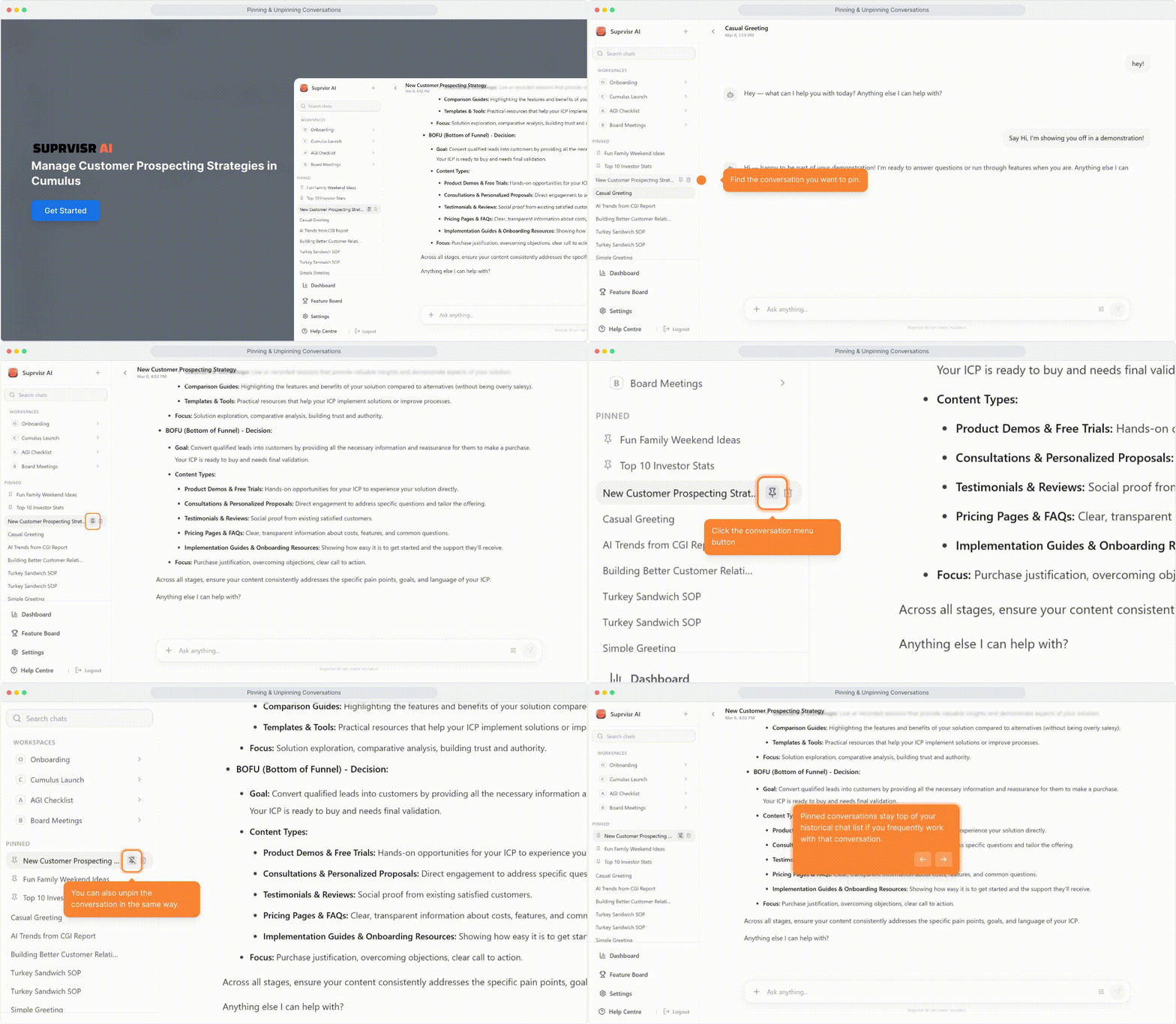
Important chats can be pinned so they stay at the top of your list.
Hover over a conversation
In the sidebar, hover over any conversation to reveal action icons.
Click the pin icon
The pin icon appears on hover. Click it to pin the conversation to the Pinned section at the top of your list.
Unpin when done
Click the pin icon again on a pinned conversation to move it back to Recent.
Searching conversations
Use the search icon in the sidebar to search across all your conversations by content — not just title.
- Type any keyword to find messages that contain it
- Results show the conversation name and a message snippet
- Click a result to jump directly to that conversation and message
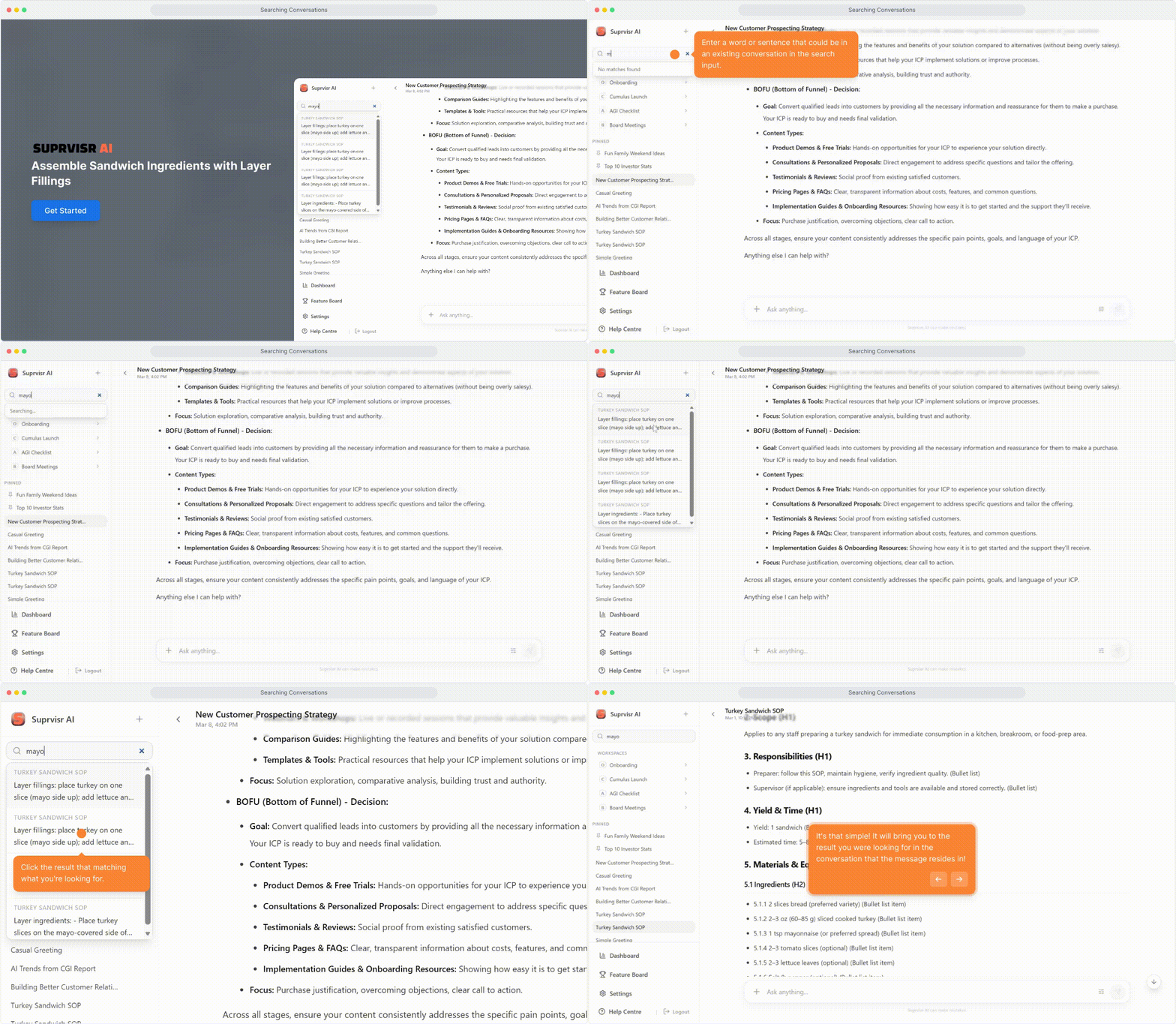
Search uses a 250ms debounce — results appear shortly after you stop typing.
Renaming a conversation
You can rename a chat inline without leaving the thread. Click the conversation title at the top of the chat, type a new name, and press Enter to save. The updated name appears immediately in the sidebar.
Moving a chat into a project
If a standalone chat grows into something that needs shared context — project members, sources, or project memory — you can promote it to a project without losing any history.
Hover over the conversation in the sidebar, click Move to project, and select the destination project. After the move:
- The full chat history is preserved
- Project members can now see the conversation
- Project sources are available in all subsequent messages in that thread
Moving to a project is a one-way action — the chat leaves the standalone list and lives under the project from that point on.
Forking a chat
At any point in a thread, you can fork the current state into a new standalone chat. This is useful for branching an exploration — trying a different angle or prompt direction — without losing your place in the original conversation.
To fork, open the … menu on the message you want to branch from and select Fork chat. The forked chat carries forward the conversation history (and, where applicable, source citations) up to that point, giving you a clean starting point for the new direction.
The original conversation is untouched and remains in your sidebar exactly as it was.
Deleting conversations
To permanently delete a conversation:
- Hover over it in the sidebar
- Click the trash icon that appears
- Confirm the deletion
Deleted conversations cannot be recovered.
How conversations are named
Cumulus automatically names your conversations based on their content. The name is generated after your first exchange and updates as the conversation evolves. You can always rename it manually at any time.
Related
- AI Chat — how to use the main chat interface
- Workspaces — project folders with shared context and team members
- Cards & Artifacts — AI-generated documents saved alongside chats