Workspaces
Workspaces let you organize your AI interactions around specific projects. Each workspace is a self-contained project folder with its own chats, documents, team members, and AI memory — so the AI always has the right context for the conversation.
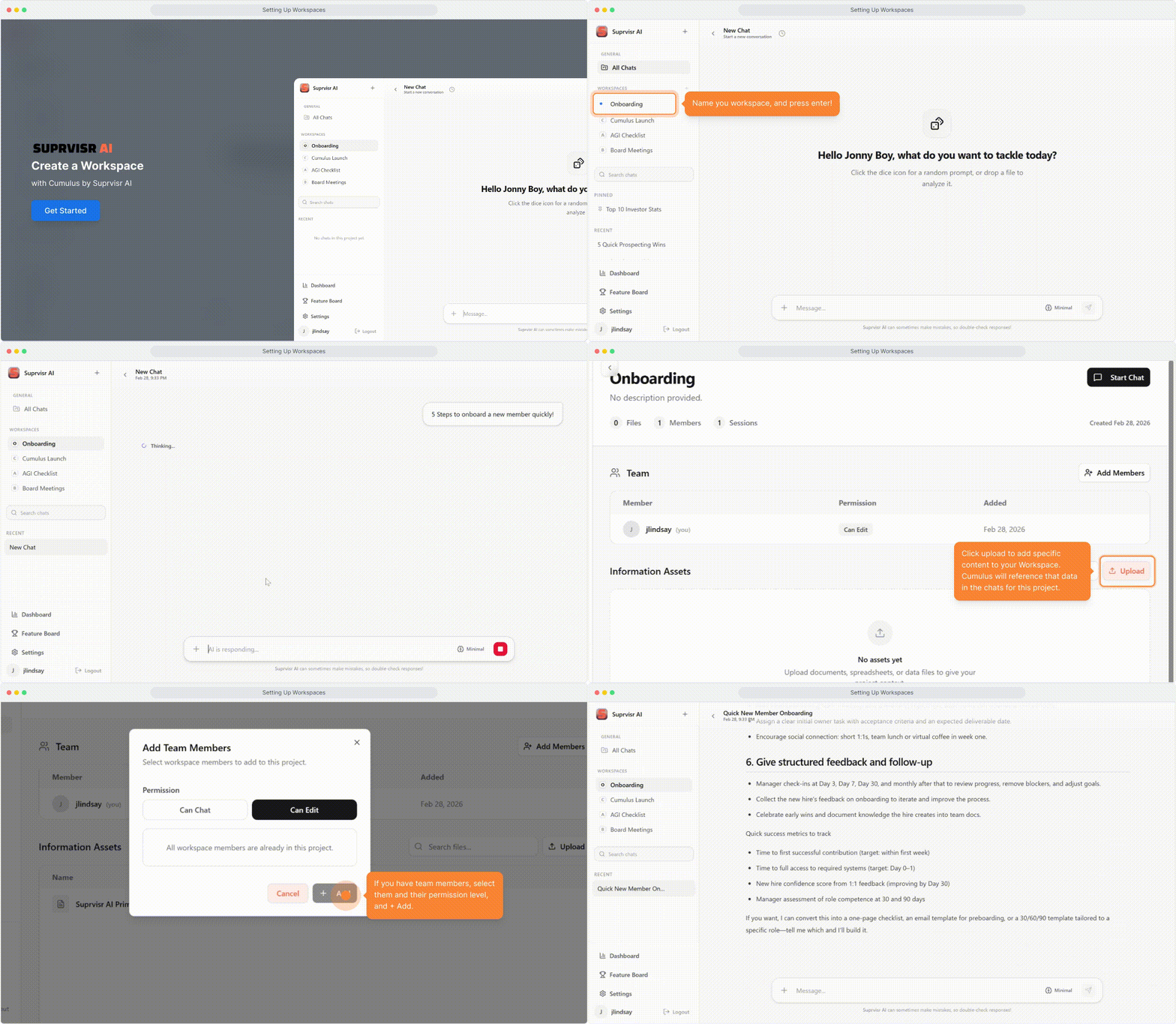
Creating a workspace
Click + in the Projects section
In the left sidebar, find the Projects section and click the + button.
Name your workspace
Type a name for your project and press Enter. You’re taken directly to the new workspace dashboard.
Name workspaces after projects, clients, or initiatives — e.g. “Q2 Product Launch”, “Client: Acme Corp”, “Engineering Sprint 14”.
The workspace dashboard
Each workspace has five tabs:
Overview
Your project at a glance — name, description, quick stats (chats, sources, team members), a New Chat button, and previews of recent chats, sources, and team.
Click the description area to edit it inline.
Chats
All conversations within this workspace. Click any chat to continue it. Start a new one with the New Chat button — it automatically inherits the workspace context.
Sources
Upload and manage project documents. The AI uses these as context when answering questions inside this workspace.
Upload files
Click Upload or drag and drop files onto the Sources tab. Supported formats:
| Format | Extensions |
|---|---|
| Documents | .pdf, .docx, .txt, .md |
| Spreadsheets | .csv, .xlsx, .xls |
| Images | .png, .jpg, .gif, .webp |
Maximum file size: 100 MB.
Track processing status
Each file shows its current status:
| Status | Meaning |
|---|---|
| Pending | Queued for processing |
| Processing | Being read and indexed |
| Indexed | Ready — the AI can search this document |
| Failed | Error occurred — use the retry button to reprocess |
Compare documents
Select two files using the checkboxes, then click Compare to start an AI chat that analyzes both documents side by side.
Team
Manage who has access to this workspace.
| Role | What they can do |
|---|---|
| Viewer | Read chats and sources |
| Member | Chat, upload files |
| Admin | Manage members and settings |
| Owner | Full control including transfer and deletion |
Click Add Member to invite team members from your organization. Change roles or remove members from the member list.
Memory
Give the AI persistent context about this project. Add notes, background information, or instructions that should apply to every conversation in this workspace.
Type your context in the text area and click Save. The AI references this memory whenever someone chats inside the workspace.
Workspace memory is separate from your personal AI Memory. Both are used when chatting inside a workspace — personal memory for who you are, workspace memory for project context.
Related
- Conversations — individual chat management
- Knowledge Base — organization-wide document uploads
- File Uploads — attach files to individual chat messages
- AI Memory — personal AI context